Skip to content

2024

Resolving Cloudflare "Partial Zone Sign-Up Not Allowed (1104)" in Terraform
Cloudflare Terraform

When provisioning a Cloudflare Partial (CNAME) setup using Terraform, you may encounter the following error:

Error: error creating zone "vettom.online": Partial zone signup not allowed (1104)

Root Cause

Partial zone setups (where you keep your authoritative nameservers with AWS Route53 or another provider and point specific CNAME records to Cloudflare) are an Enterprise-only feature.

Additionally, programmatic creation of partial zones via the API/Terraform must be explicitly enabled on your Cloudflare enterprise account.


Resolution

  1. Verify that your Cloudflare account is subscribed to an Enterprise plan.
  2. Open a support ticket with Cloudflare Support requesting activation of "Partial Zone Setup via API/Terraform" for your Account ID.
  3. Authenticate Terraform using an API Token with Zone.Zone:Edit permissions or a Global API Key.
resource "cloudflare_zone" "zone" {
  account_id = var.cloudflare_account_id
  zone       = "vettom.online"
  type       = "partial"
  plan       = "enterprise"
}

Fixing "Unable to Retrieve Credentials" When Pulling Charts from ECR Public

When attempting to pull Helm charts or container images from the public Amazon ECR registry (public.ecr.aws), you may encounter the following error:

helm pull oci://public.ecr.aws/karpenter/karpenter
Error: GET "https://public.ecr.aws/v2/karpenter/karpenter/tags/list": unable to retrieve credentials

Root Cause & Solution

While the repository is public, Helm requires anonymous or token-based authentication with public.ecr.aws before it can query OCI tag lists.

Authenticate Helm to the public ECR registry (always using region us-east-1):

aws ecr-public get-login-password --region us-east-1 \
  | helm registry login --username AWS --password-stdin public.ecr.aws

Once logged in, pull the chart normally:

helm pull oci://public.ecr.aws/karpenter/karpenter --version 1.0.6

Resolving "No Audio While Editing" in Adobe Premiere Pro on macOS

Adobe Premiere Audio Error

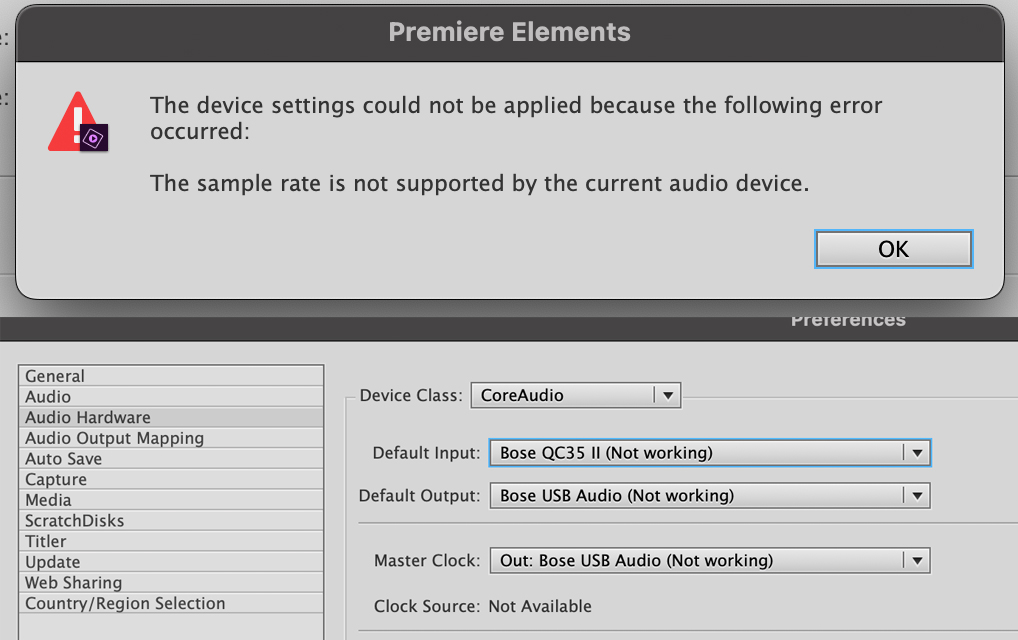
While editing video in Adobe Premiere Pro on macOS, you may encounter an issue where timeline audio playback stops working completely, accompanied by the error:

The sample rate is not supported by the current audio device.

Root Cause

If the selected Audio Input device (e.g. Bluetooth headset microphone or external USB mic) does not match the sample rate expected by Premiere Pro (typically 48,000 Hz / 44,100 Hz), Premiere halts all audio playback across both input and output channels.


Solution

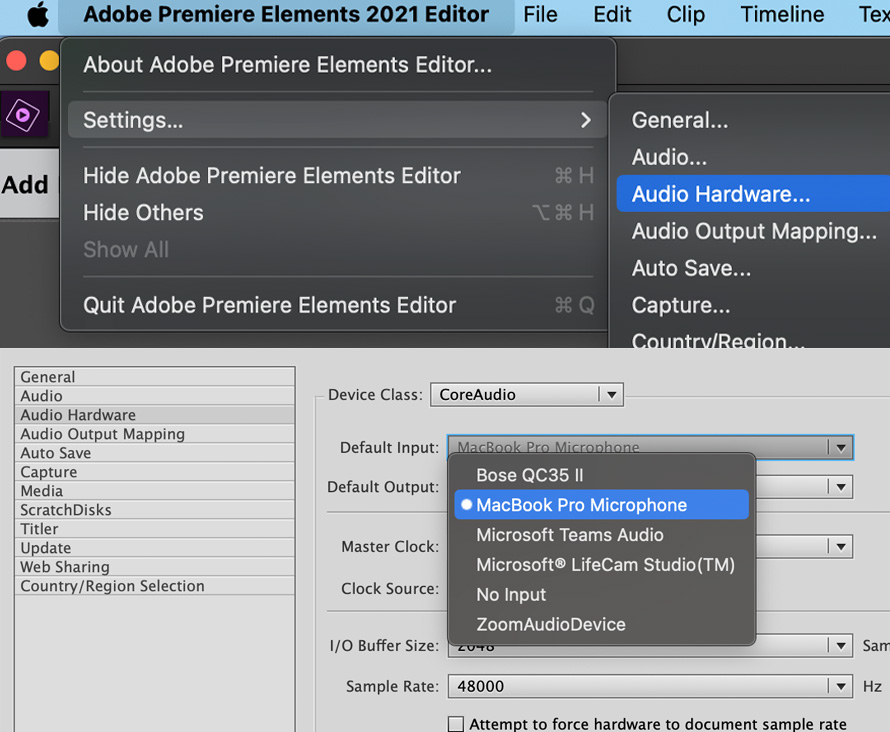
  1. In Adobe Premiere Pro, navigate to Settings → Audio Hardware.
  2. Set Default Input to No Input (or your built-in MacBook microphone).
  3. Set Default Output to your preferred headphones or speakers.
  4. Verify that the Sample Rate matches 48000 Hz.

Adobe Premiere Audio Settings


macOS Audio MIDI Setup

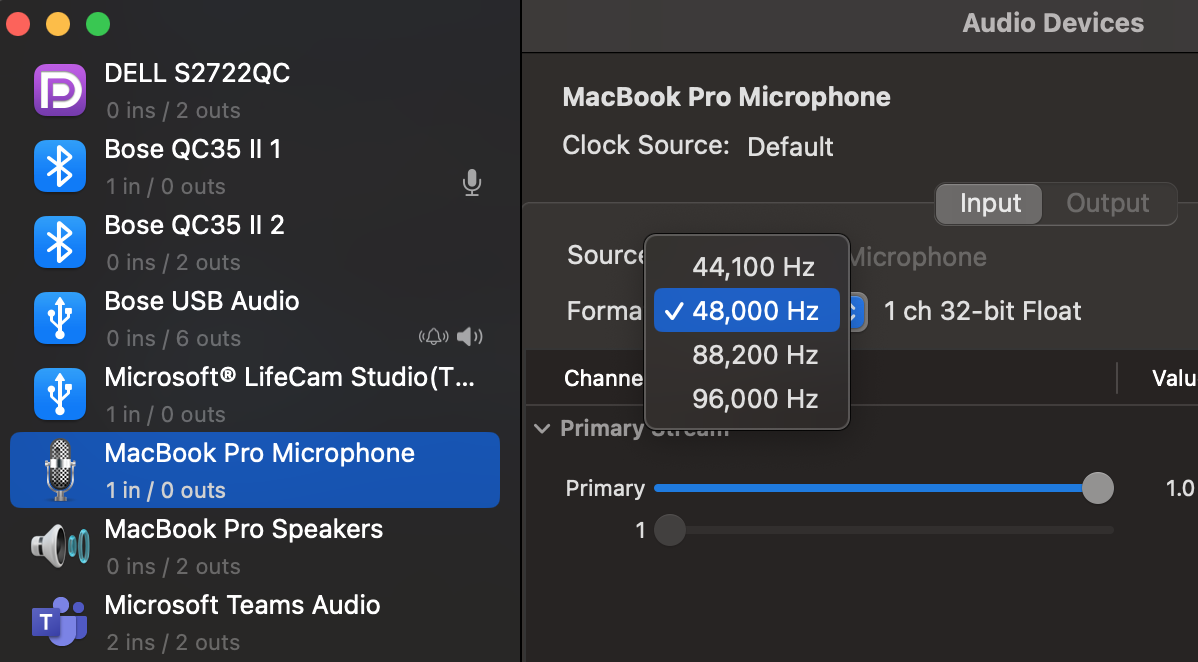
If the issue persists, open the native Audio MIDI Setup.app on macOS and align the sample rates across all connected audio input and output devices.

Mac Audio MIDI Setup

How to Reset the ArgoCD Admin Password

ArgoCD

ArgoCD initial administrator credentials are automatically generated during installation and stored in the argocd-initial-admin-secret Kubernetes Secret.

Once customized or deleted, the active admin password hash is maintained inside the argocd-secret Secret. If the admin password is lost or locked out, follow the recovery procedure below.


Password Reset Workflow

graph LR
    Step1["1. Patch argocd-cm ConfigMap<br/>(Enable admin account)"] --> Step2["2. Remove admin.password key<br/>from argocd-secret"]
    Step2 --> Step3["3. Restart argocd-server Pod<br/>(Regenerates default password)"]

Step 1. Ensure the Admin Account is Enabled

Ensure admin.enabled: true is present in the argocd-cm ConfigMap:

kubectl patch -n argocd configmap argocd-cm --type merge -p '{"data":{"admin.enabled":"true"}}'

Step 2. Remove Existing Password Hash from argocd-secret

Remove the admin.password and admin.passwordMtime keys from the argocd-secret Secret:

kubectl patch secret argocd-secret -n argocd --type json \
  -p='[{"op": "remove", "path": "/data/admin.password"}, {"op": "remove", "path": "/data/admin.passwordMtime"}]'

Example structure of argocd-secret:

apiVersion: v1
kind: Secret
metadata:
  name: argocd-secret
  namespace: argocd
type: Opaque
data:
  server.secretkey: K1ZCZlpEeWYwMFpjUzV5NG5tTUROOFllS0plYz0=

Step 3. Restart the ArgoCD Server Pod

Restarting the argocd-server deployment causes it to detect the missing admin password hash and regenerate the initial admin password:

kubectl rollout restart deployment argocd-server -n argocd

# Retrieve newly generated password
kubectl -n argocd get secret argocd-initial-admin-secret -o jsonpath="{.data.password}" | base64 -d && echo

Complete Amazon EKS Cluster Build with Terraform & ALB

EKS Architecture

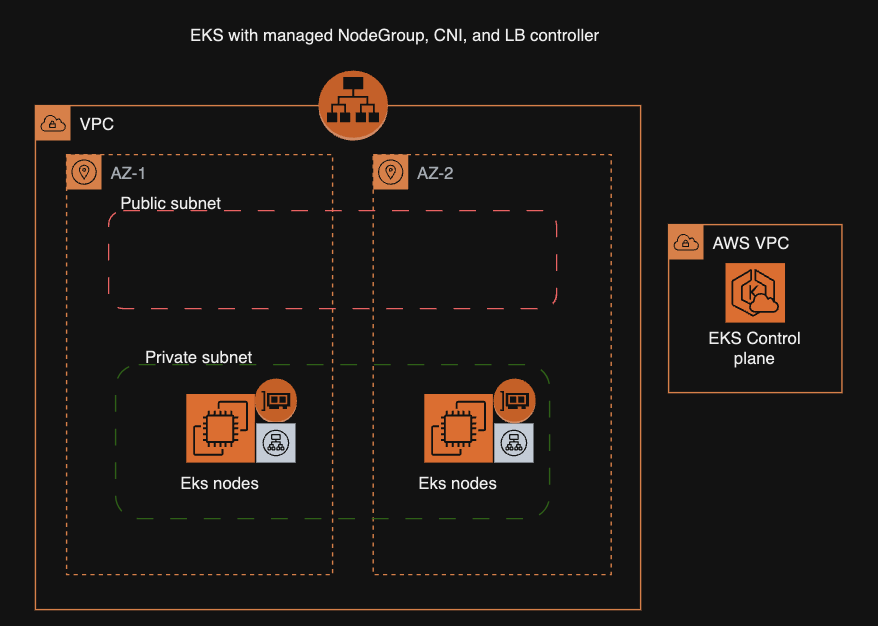
Creating a functional Amazon EKS cluster from scratch requires configuring VPC subnet discovery tags, managed node groups, VPC CNI prefix delegation, and the AWS Load Balancer Controller.

📁 Source Code: aws-eks-terraform / EKS-Cluster-ALB


📺 Video Walkthrough


What's Included

  • VPC: 2 private subnets for worker nodes and 2 public subnets with ELB discovery tags.
  • EKS Cluster: Kubernetes 1.31+ with API-only access authentication (EKS Access Entries).
  • Managed Node Group: Single Spot instance running optimized Bottlerocket OS.
  • VPC-CNI Add-on: Enabled with prefix delegation for high pod density.
  • AWS Load Balancer Controller: Deployed via Helm to provision ALBs in ip target mode.

Mounting AWS Secrets as Environment Variables via Secrets Store CSI Driver

Kubernetes CSI

By default, the AWS Secrets Store CSI Driver mounts secrets from AWS Secrets Manager as volume-attached files inside containers.

However, many legacy and cloud-native applications expect secrets (such as database credentials or API tokens) to be passed as environment variables.

By utilizing spec.secretObjects in the SecretProviderClass, the CSI driver automatically creates a synchronized native Kubernetes Secret whenever a pod mounts the volume, allowing you to consume the secrets as standard env variables.

📁 Source Code: Aws-Eks-SecretsManager


SecretProviderClass Configuration

secret-provider-class.yaml

apiVersion: secrets-store.csi.x-k8s.io/v1
kind: SecretProviderClass
metadata:
  name: aws-secret-to-k8s-secret
  namespace: default
spec:
  provider: aws
  parameters:
    objects: |
      - objectName: "MySecret"
        objectType: "secretsmanager"
        jmesPath:
          - path: "username"
            objectAlias: "DB_USER"
          - path: "password"
            objectAlias: "DB_PASS"
  secretObjects:
    - secretName: db-k8s-secret
      type: Opaque
      data:
        - objectName: "DB_USER"
          key: "username"
        - objectName: "DB_PASS"
          key: "password"


Pod Manifest Mounting Secret as Environment Variable

pod.yaml

apiVersion: v1
kind: Pod
metadata:
  name: demo-app
  namespace: default
spec:
  serviceAccountName: nginx-deployment-sa
  containers:
    - name: app
      image: nginx:alpine
      env:
        - name: DATABASE_USER
          valueFrom:
            secretKeyRef:
              name: db-k8s-secret
              key: username
        - name: DATABASE_PASSWORD
          valueFrom:
            secretKeyRef:
              name: db-k8s-secret
              key: password
      volumeMounts:
        - name: secrets-store-inline
          mountPath: "/mnt/secrets-store"
          readOnly: true
  volumes:
    - name: secrets-store-inline
      csi:
        driver: secrets-store.csi.k8s.io
        readOnly: true
        volumeAttributes:
          secretProviderClass: "aws-secret-to-k8s-secret"

Volume Mount Required

The Secrets Store CSI Driver creates the Kubernetes Secret only when the volume is actively mounted by at least one running Pod.

EKS: Avoiding 502/504 Errors & Timeouts During Rolling Deployments (ALB)

Target Group Status

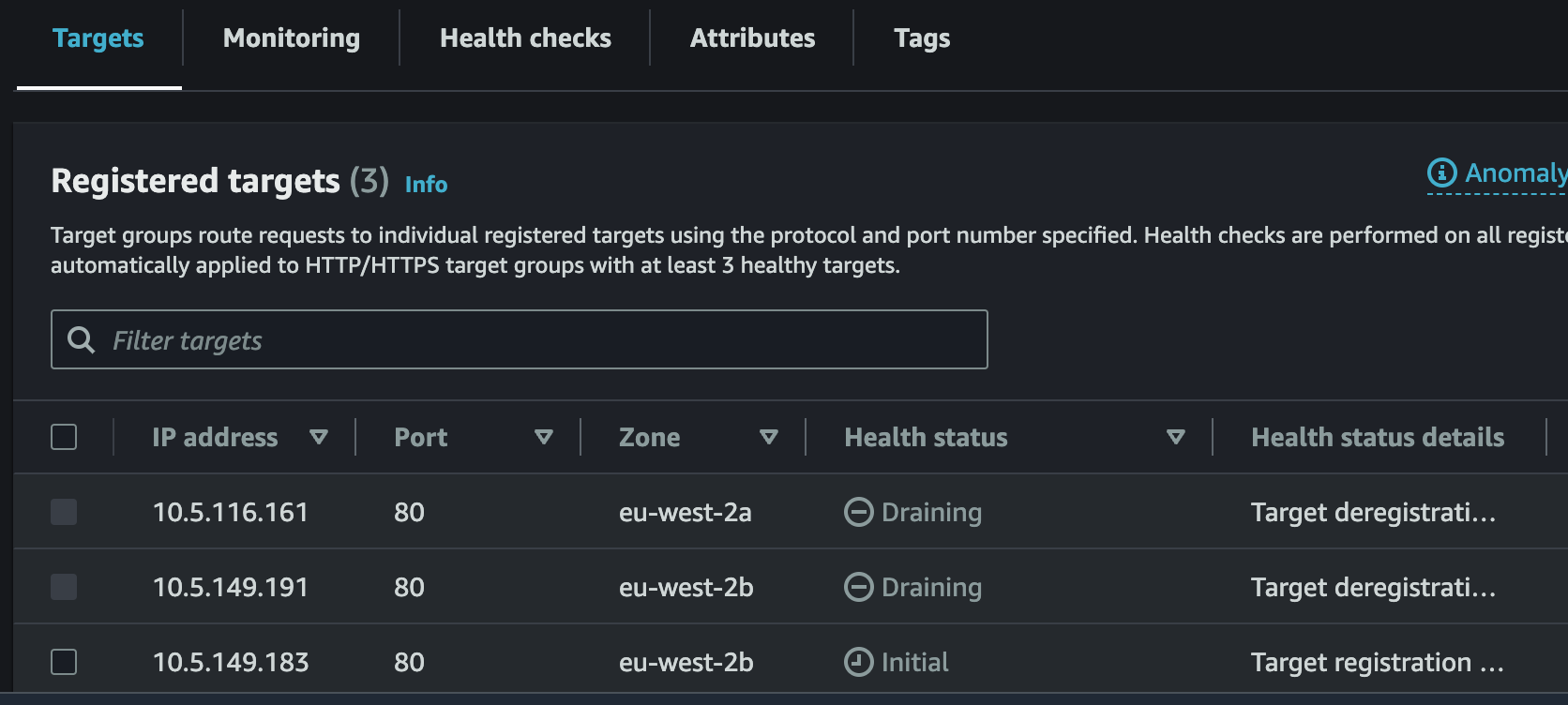
When exposing Amazon EKS applications through an AWS Application Load Balancer (ALB) using IP target mode, rolling updates can sometimes trigger brief 502 Bad Gateway / 504 Gateway Timeout errors.


Root Causes

  1. Slow Target Registration: Kubernetes marks a new pod as Ready before the AWS ALB Target Group finishes health checking and registering the pod's IP address.
  2. Abrupt Termination: Kubernetes sends SIGTERM and terminates an old pod before the ALB finishes draining active connections from the target group.

The Two-Part Solution

1. Enable Pod Readiness Gates

Configuring Pod Readiness Gates prevents Kubernetes from terminating old pods until the new pod's IP is fully registered and healthy inside the AWS ALB target group.

Enable readiness gate injection by labeling your application namespace:

kubectl label namespace default elbv2.k8s.aws/pod-readiness-gate-inject=enabled

2. Configure preStop Sleep Hook & Deregistration Delay

Add a preStop hook to delay pod shutdown while the ALB deregisters the target, and tune the Target Group deregistration delay:

deployment.yaml

apiVersion: apps/v1
kind: Deployment
metadata:
  name: web-app
spec:
  replicas: 3
  template:
    spec:
      terminationGracePeriodSeconds: 60
      containers:
        - name: app
          image: nginx:latest
          lifecycle:
            preStop:
              exec:
                command: ["/bin/sh", "-c", "sleep 30"]

ingress.yaml

apiVersion: networking.k8s.io/v1
kind: Ingress
metadata:
  name: web-ingress
  annotations:
    alb.ingress.kubernetes.io/scheme: internet-facing
    alb.ingress.kubernetes.io/target-type: ip
    alb.ingress.kubernetes.io/target-group-attributes: deregistration_delay.timeout_seconds=30
spec:
  ingressClassName: alb
  rules:
    - http:
        paths:
          - path: /
            pathType: Prefix
            backend:
              service:
                name: web-service
                port:
                  number: 80