How to Mount S3 Files on EKS
AWS S3 Files is a shared file system that connects any AWS compute directly with your data in Amazon S3. It presents S3 buckets as an NFS-compatible, cached EFS-backed filesystem that can be mounted concurrently on multiple nodes in an EKS cluster — usable just like a standard EFS filesystem.
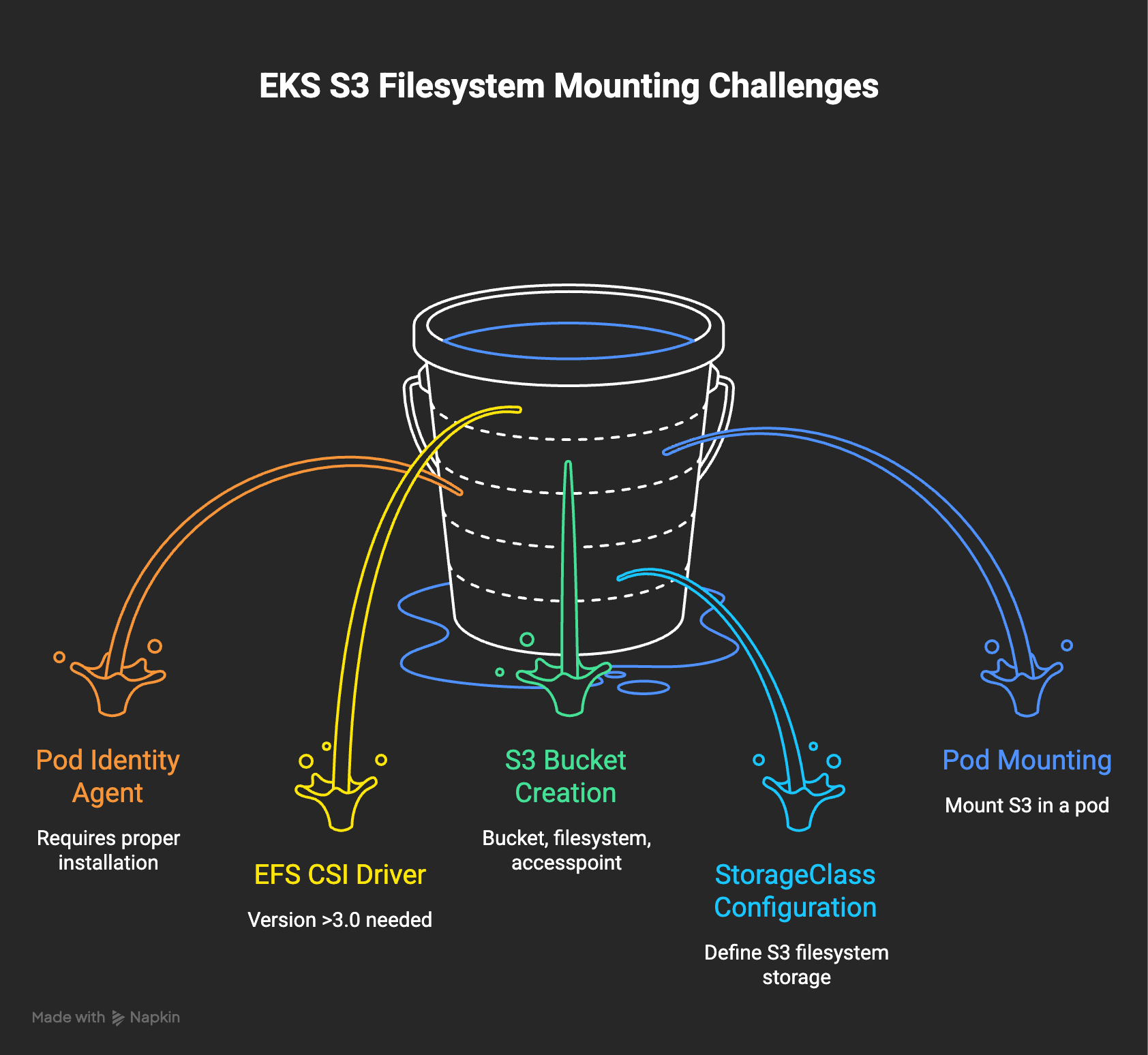
In this guide, we document every step required to set up S3 Files and mount it in a pod using Terraform and EKS Pod Identity.
📁 Source Code: aws-eks-terraform / EKS-S3Files
Architecture Overview
graph LR
    Pod["EKS Pod (PV Mount)"] --> EFSCSI["AWS EFS CSI Driver (v3.0+)"]
    EFSCSI --> S3Files["Amazon S3 Files (NFS Endpoint / Port 2049)"]
    S3Files --> S3["Amazon S3 Bucket (Object Store)"]
Prerequisites
- Amazon EKS cluster with EKS Pod Identity agent add-on enabled.
- VPC with private subnets for EKS worker nodes.
- Terraform configured with the AWS Provider.
- AWS EFS CSI Driver version 3.0 or above (required for S3 Files support).
Step 1. Configure IAM Roles for EFS CSI Driver & Pod Identity
The EFS CSI Driver requires permissions to mount EFS/S3 Files volumes, attach client policies, and assume roles via Pod Identity:
iam-efs-csi-podid.tf
data "aws_iam_policy_document" "pod_id_assume_role" {
  statement {
    effect = "Allow"
    principals {
      type        = "Service"
      identifiers = ["pods.eks.amazonaws.com"]
    }
    actions = ["sts:AssumeRole", "sts:TagSession"]
  }
}

resource "aws_iam_role" "efs_csi_controller" {
  name               = "efs-csi-controller-${module.eks.cluster_name}"
  assume_role_policy = data.aws_iam_policy_document.pod_id_assume_role.json
}

resource "aws_iam_role_policy_attachment" "efs_csi_driver_policy" {
  role       = aws_iam_role.efs_csi_controller.name
  policy_arn = "arn:aws:iam::aws:policy/service-role/AmazonEFSCSIDriverPolicy"
}

resource "aws_iam_role_policy_attachment" "s3_files_csi_driver_policy" {
  role       = aws_iam_role.efs_csi_controller.name
  policy_arn = "arn:aws:iam::aws:policy/service-role/AmazonS3FilesCSIDriverPolicy"
}

resource "aws_iam_role_policy_attachment" "efs_csi_s3_client_full_access" {
  role       = aws_iam_role.efs_csi_controller.name
  policy_arn = "arn:aws:iam::aws:policy/AmazonS3FilesClientFullAccess"
}

data "aws_iam_policy_document" "efs_client_mount" {
  statement {
    effect    = "Allow"
    actions   = ["elasticfilesystem:ClientMount"]
    resources = ["*"]
  }
}

resource "aws_iam_role_policy" "efs_client_mount" {
  name   = "efs-client-mount"
  role   = aws_iam_role.efs_csi_controller.name
  policy = data.aws_iam_policy_document.efs_client_mount.json
}

resource "aws_eks_pod_identity_association" "efs_csi_controller" {
  cluster_name    = module.eks.cluster_name
  namespace       = "kube-system"
  service_account = "efs-csi-controller-sa"
  role_arn        = aws_iam_role.efs_csi_controller.arn
}

resource "aws_eks_pod_identity_association" "efs_csi_node" {
  cluster_name    = module.eks.cluster_name
  namespace       = "kube-system"
  service_account = "efs-csi-node-sa"
  role_arn        = aws_iam_role.efs_csi_controller.arn
}
Step 2. Install AWS EFS CSI Driver
resource "helm_release" "aws_efs_csi_driver" {
  name             = "aws-efs-csi-driver"
  repository       = "https://kubernetes-sigs.github.io/aws-efs-csi-driver"
  chart            = "aws-efs-csi-driver"
  namespace        = "kube-system"
  create_namespace = false
  version          = "3.0.8" # Version 3.0+ required for S3 Files support
  depends_on       = [module.eks]
}
Step 3. S3 Bucket, S3 Files Filesystem & Mount Targets
- Create an S3 bucket with versioning enabled (mandatory for S3 Files). Add a lifecycle rule to expire non-current versions.
- Create the S3 Files filesystem and attach its service role.
- Allow NFS (port 2049) ingress from EKS worker nodes.
- Create mount targets in each private subnet.
s3-files.tf
resource "aws_s3_bucket" "s3filesstore" {
  bucket = "s3filesstore-${module.eks.cluster_name}"
}

resource "aws_s3_bucket_versioning" "s3filesstore" {
  bucket = aws_s3_bucket.s3filesstore.id
  versioning_configuration {
    status = "Enabled"
  }
}

resource "aws_s3_bucket_lifecycle_configuration" "s3filesstore" {
  bucket = aws_s3_bucket.s3filesstore.id
  rule {
    id     = "expire-noncurrent-versions"
    status = "Enabled"
    noncurrent_version_expiration {
      noncurrent_days = 7
    }
  }
}

resource "aws_s3files_file_system" "s3filesstore" {
  bucket   = aws_s3_bucket.s3filesstore.arn
  role_arn = aws_iam_role.s3_files.arn
}

resource "aws_security_group" "s3files" {
  name        = "s3files-${module.eks.cluster_name}"
  description = "Allow NFS from EKS nodes to S3 Files"
  vpc_id      = module.vpc.vpc_id

  ingress {
    from_port       = 2049
    to_port         = 2049
    protocol        = "tcp"
    security_groups = [module.eks.node_security_group_id]
  }

  egress {
    from_port   = 0
    to_port     = 0
    protocol    = "-1"
    cidr_blocks = ["0.0.0.0/0"]
  }
}

resource "aws_s3files_mount_target" "s3filesstore" {
  count           = length(module.vpc.private_subnets)
  file_system_id  = aws_s3files_file_system.s3filesstore.id
  subnet_id       = module.vpc.private_subnets[count.index]
  security_groups = [aws_security_group.s3files.id]
}
Step 4. Mount S3 Files in a Kubernetes Pod
Deploy a StorageClass, PersistentVolume, PersistentVolumeClaim, and a pod that mounts the shared volume:
s3-storage.yaml
apiVersion: storage.k8s.io/v1
kind: StorageClass
metadata:
  name: s3files-sc
provisioner: efs.csi.aws.com
---
apiVersion: v1
kind: PersistentVolume
metadata:
  name: s3files-pv
spec:
  capacity:
    storage: 500Gi
  volumeMode: Filesystem
  accessModes:
    - ReadWriteMany
  persistentVolumeReclaimPolicy: Retain
  storageClassName: s3files-sc
  csi:
    driver: efs.csi.aws.com
    volumeHandle: fs-0123456789abcdef0 # S3 Files FileSystem ID
---
apiVersion: v1
kind: PersistentVolumeClaim
metadata:
  name: s3files-pvc
spec:
  accessModes:
    - ReadWriteMany
  storageClassName: s3files-sc
  resources:
    requests:
      storage: 500Gi
---
apiVersion: v1
kind: Pod
metadata:
  name: app-s3files-test
spec:
  containers:
    - name: app
      image: alpine:latest
      command: ["/bin/sh"]
      args: ["-c", "echo 'Hello from EKS via S3 Files' > /data/test.txt; sleep 3600"]
      volumeMounts:
        - name: s3-storage
          mountPath: /data
  volumes:
    - name: s3-storage
      persistentVolumeClaim:
        claimName: s3files-pvc