Resolving "No Audio While Editing" in Adobe Premiere Pro on macOS
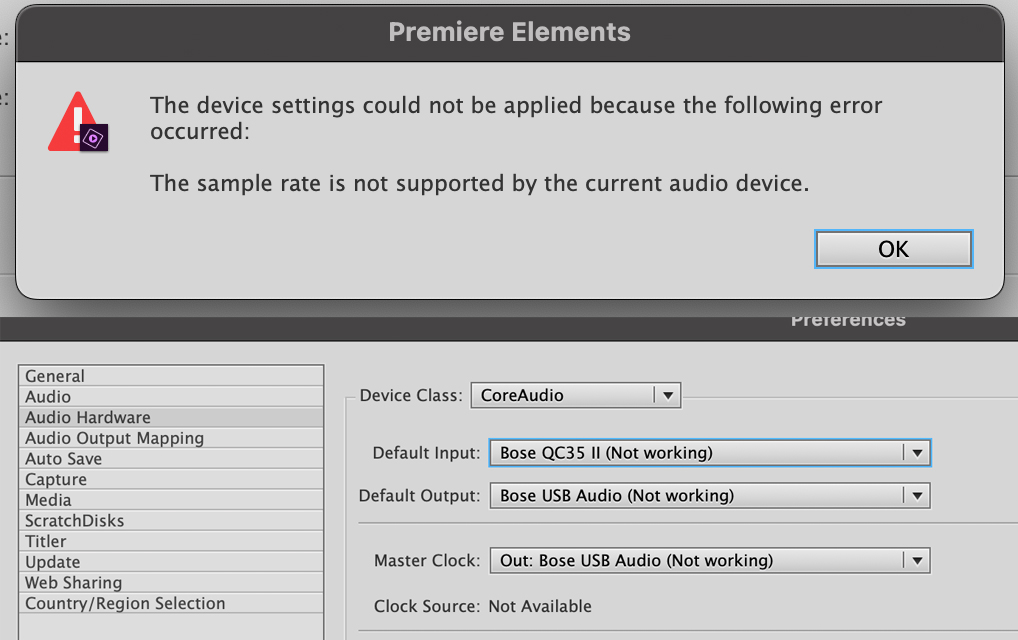
While editing video in Adobe Premiere Pro on macOS, you may encounter an issue where timeline audio playback stops working completely, accompanied by the error:
Root Cause
If the selected Audio Input device (e.g. Bluetooth headset microphone or external USB mic) does not match the sample rate expected by Premiere Pro (typically 48,000 Hz / 44,100 Hz), Premiere halts all audio playback across both input and output channels.
Solution
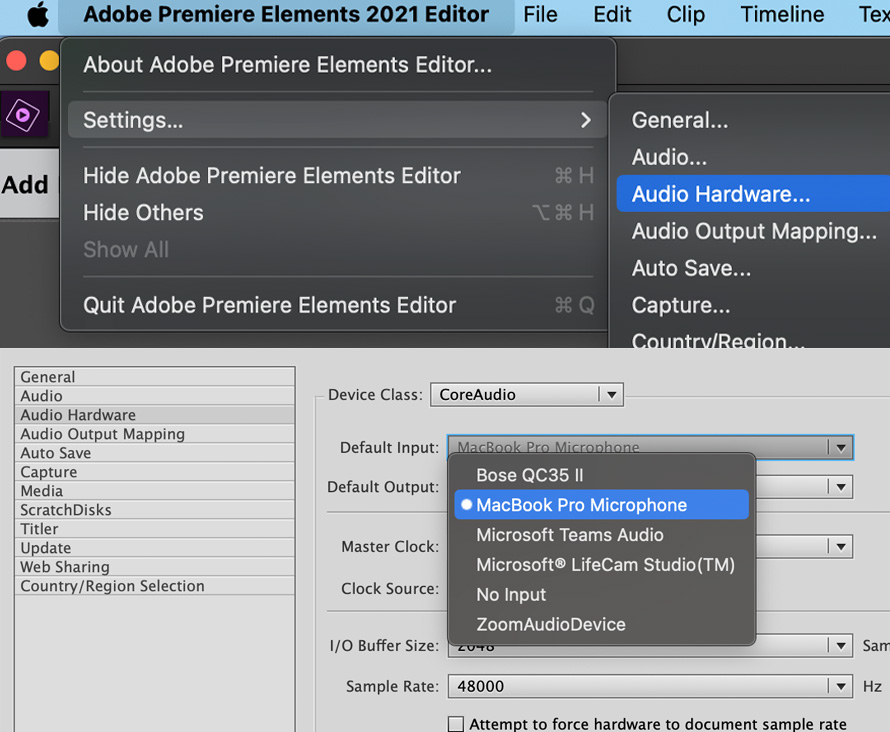
- In Adobe Premiere Pro, navigate to Settings → Audio Hardware.
- Set Default Input to No Input (or your built-in MacBook microphone).
- Set Default Output to your preferred headphones or speakers.
- Verify that the Sample Rate matches
48000 Hz.
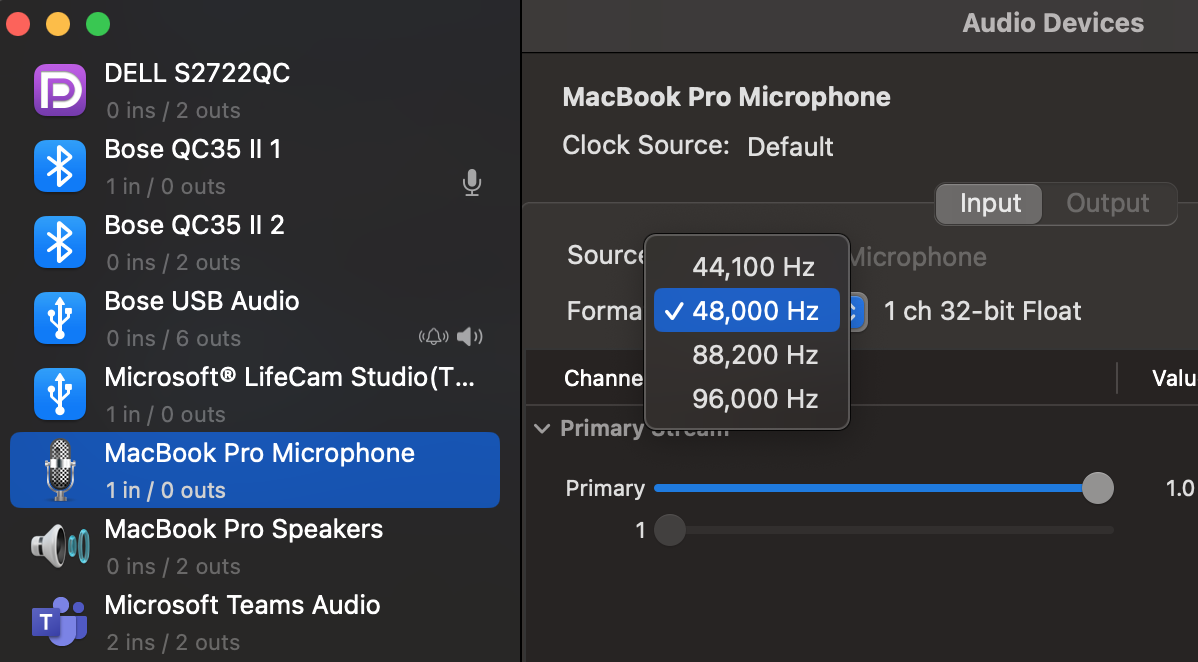
macOS Audio MIDI Setup
If the issue persists, open the native Audio MIDI Setup.app on macOS and align the sample rates across all connected audio input and output devices.